Git for QAs, a practical guide for testers who automate
If you've been doing QA for years and Git still feels like a minefield, this guide covers everything you need to know to automate, read diffs, review PRs, and avoid breaking the team's repo. Real workflows, commands with examples, and mistakes I've seen, and made.

I've spent years seeing QAs who handle Postman like ninjas, know every advanced Playwright option, and can spot a bug from the browser's reflection, but then freeze when a developer tells them "pull my changes and review my branch". Git is still a blind spot in the QA profile in Spain, especially for people coming from manual testing who have started automating.
This guide is what I wish someone had put in front of me when I had to start working with real repos. No graph theory, no Linux kernel history. Just the commands and concepts you're going to use every day when you're writing test scripts, automating E2E, or reviewing a backend PR from QA.
The mental model that saved me months
The first thing that changed everything for me was stopping seeing Git as a tool for "saving versions". Git stores changes as commits, and each commit is a snapshot of the whole project at a specific moment. What matters is that your work lives in four different areas, and Git commands only move things between those areas.
Working directory. The files you see in the IDE, what you edit by hand.
Staging area. The changes you've already selected to be part of the next commit.
Local repository. The commit history on your machine, inside the
.gitfolder.Remote repository. GitHub, GitLab, Bitbucket, or whatever your team uses.
When you run git add, you move something from the working directory to staging. With git commit, you put it into local history. With git push, you send it to the remote. Understanding this clears up 80% of the "I don't know why it's not showing up" moments.
The analogy that's worked best for me when explaining it to QA folks is this: the working directory is like a test you're writing, staging is like having already marked it for the suite, the commit is having run it and saved the result, and push is having published it to the team's dashboard.
Initial setup
You only do this once on your machine. It identifies who you are in commits:
git config --global user.name "Tu Nombre"
git config --global user.email "[email protected]"
git config --global init.defaultBranch main
git config --global pull.rebase false
The last line is debatable, but if you're just getting started with Git, I recommend pull.rebase false, which makes pull do a merge by default. That avoids surprises until you really understand rebase. I explain it below.
If you're going to work with GitHub and multiple projects, set up an SSH key and stop typing passwords every time you push:
ssh-keygen -t ed25519 -C "[email protected]"
cat ~/.ssh/id_ed25519.pub   # pegas el contenido en GitHub → Settings → SSH keys
Your first complete workflow
Imagine you've just been given access to an automation repo. This is the cycle you're going to repeat a hundred times a week.
# 1. Descargar el repo por primera vez
git clone [email protected]:empresa/tests-e2e.git
cd tests-e2e

# 2. Ver en qué rama estás y qué ha tocado alguien
git status
git log --oneline -10

# 3. Actualizar tu copia local antes de empezar
git pull

# 4. Crear una rama nueva para tu tarea
git checkout -b fix/login-flaky

# 5. Editar código, correr tests, lo de siempre
# ...

# 6. Ver qué has cambiado
git status
git diff

# 7. Seleccionar lo que va al commit
git add tests/auth/login.spec.ts
# o todo a la vez:
git add .

# 8. Hacer el commit con un mensaje decente
git commit -m "fix(auth): esperar a que el token llegue antes de navegar"

# 9. Subir la rama al remoto
git push -u origin fix/login-flaky
The first time you push a new branch you need -u origin nombre-rama. After that, git push is enough.
Branches are the highest-return habit
If I had to keep just one habit, it'd be this, never work directly on main. Every change, no matter how small, goes in its own branch. A typo in the README goes in a branch. A new test suite goes in a branch. A CSS selector fix goes in a branch.
It has three benefits you'll notice in the first week.
You can switch tasks without losing anything.
git checkout mainand you're clean.Pull requests stay small and get reviewed quickly.
If something goes wrong, you delete the branch and that's it. Nobody else has seen your chaos.
The naming convention I use for branches in testing projects:
test/to add new cases, for exampletest/checkout-tarjeta-3dsfix/to fix broken or flaky tests, for examplefix/login-timeout-cirefactor/to reorganize without changing behaviorchore/for dependencies, configuration, and CI
Reading diffs, where bugs live
A QA who reads a diff well sees things nobody else on the team sees. Because the diff is where bugs live before they reach production. If you have to review a PR, looking at the diff tells you what changed, what to test, and which regression cases to think about.
On the command line:
git diff                       # cambios en working directory
git diff --staged              # cambios ya añadidos al staging
git diff main...fix/login      # diferencia entre dos ramas
git log -p archivo.ts          # historial con el diff de cada commit
In the GitHub or GitLab UI, the diff is color-coded. Green is added, red is removed. What I look at as QA when reviewing a PR:
Are there new tests for the change? If not, that's a red flag.
Does the change touch
ifconditions, loops, or early returns? Those are the best hiding spots for bugs.Did they touch error-handling code? That's usually poorly tested.
Are there changes in migrations, schemas, or API contracts? That's where you need to test backward and forward compatibility.
Has complexity gone up without new tests? Also a red flag.
Merge vs rebase, no religion
These are the two ways to bring changes from another branch into yours. The difference in one sentence, merge preserves the real history, rebase rewrites it to make it linear.
# Merge, crea un commit extra que une las dos ramas
git checkout fix/login
git merge main

# Rebase, apila tus commits encima de main como si los acabaras de hacer
git checkout fix/login
git rebase main
The practical rules I follow, and they haven't failed me:
Only rebase branches you haven't pushed yet, or branches only you use. If you rewrite the history of a shared branch, you break things for your team.
To integrate your branch into
main, on small projects either one is fine. On big projects there's usually a team policy, so ask before making something up.If you're just starting out with Git, stick with merge until you properly understand rebase. No rush.
Conflicts without panic
You're going to have conflicts. That's not you messing up, it's normal on teams with more than one person. A conflict happens when two people changed the same lines in the same file on different branches, and Git doesn't know which one should win.
When you run git pull or git merge and a conflict appears, you'll see something like this inside the file:
<<<<<<< HEAD
await page.getByRole('button', { name: 'Entrar' }).click();
=======
await page.getByTestId('login-submit').click();
>>>>>>> main
The top part is your version, the bottom part is what's coming from main. Your job is to decide what stays. You edit the file, remove the markers (<<<, ===, >>>), leave the final code, and close the conflict:
git add fichero-conflictivo.ts
git commit   # Git ya rellena el mensaje por ti
Three mistakes I've seen a thousand times with new people:
Leaving the markers (
<<<) in the code and committing. The test doesn't even compile.Always keeping their own version without understanding what the other one did. You lose your teammate's changes without even knowing it.
Running
git merge --abortin a panic because you're afraid of breaking something. A lot of the time, sticking with it and resolving the conflict is faster than backing out.
What should, and shouldn't, go into a testing repo
This is where a well-trained QA makes a difference. .gitignore decides what Git ignores when you run git add. A testing repo without a properly configured .gitignore ends up full of junk and, worse, with secrets published by accident.
Minimal template for projects with Playwright, pytest, Cypress, or similar:
# Dependencias
node_modules/
.venv/
__pycache__/

# Artefactos de ejecución
test-results/
playwright-report/
coverage/
videos/
screenshots/
*.log

# Entornos locales y secretos
.env
.env.local
.env.*.local
secrets.json
*.pem
*.key

# IDE
.idea/
.vscode/
*.swp
.DS_Store
On secrets, I have two rules I don't negotiate on. First, never commit a .env with real values. Second, if you accidentally commit one, treat the credential as compromised and rotate it. Deleting it in the next commit doesn't help, because the history is still there forever. I covered this in detail in the post about environment variables in E2E scripts.
Undoing things without tearing your hair out
This is the section past me would've asked for the most. Git almost never really deletes anything. You can recover almost everything if you know where to look.
I edited a file and want to go back to the previous state
git restore archivo.ts
# o antes de Git 2.23:
git checkout -- archivo.ts
I ran git add and want to remove it from staging
git restore --staged archivo.ts
# equivalente antiguo: git reset HEAD archivo.ts
I made a commit with the wrong message, and I haven't pushed it yet
git commit --amend -m "mensaje corregido"I forgot a file in the last commit
git add el-fichero.ts
git commit --amend --no-edit
I want to undo the last commit, but keep the changes
git reset HEAD~1 # deshace el commit, deja los cambios sin stagearI want to undo a commit that's already on the remote
git revert <hash-del-commit>revert creates a new commit that cancels out the previous one's changes. It never rewrites history, so it's safe on shared branches. It's the only clean way to roll back something your team has already seen.
I need to switch tasks without committing
git stash          # guarda los cambios en un "cajón"
git checkout main
# ...haces lo que tengas que hacer...
git checkout fix/login
git stash pop      # recupera los cambios
I think I've lost a commit
git reflogThe reflog is your safety net. It records every HEAD movement for about 90 days by default. If you've done a very aggressive reset or deleted a branch, there's a very good chance you can recover the work from here. The first thing I do when someone tells me "I've lost hours of code" is open the reflog.
Tags, the bridge to CI and production
Tags mark a specific commit with a stable name, usually a version (v1.2.0, release-2026-04-01). They're the tool that lets the QA team coordinate with the release team:
git tag -a v1.2.0 -m "Release de abril"
git push origin v1.2.0

git tag                 # listar tags locales
git checkout v1.2.0     # ir a ese punto del historial (modo detached)
In QA I use them for two things. First, to pin the exact version that was deployed to an environment and be able to reproduce bugs against the right code. Second, as a pipeline trigger. If your suite runs when a tag is published, you have a clearly defined release train.
One security warning that doesn't get mentioned enough, tags are mutable by default. Someone with permissions can move them. In GitHub Actions and in Dockerfiles, the right thing is to pin by the full commit SHA, not by tag. I went deeper into this in the post about supply chain attacks in Dockerfiles.
Hooks, the QA that validates before commit
Hooks are scripts Git runs at specific points in the cycle. The most useful one for QA is pre-commit, which runs before recording the commit and can block it if something fails. With tools like pre-commit or husky, you can set it up in minutes.
What I put in a decent pre-commit for a test repo:
Linter (ESLint, ruff, black) on the files you've touched.
Automatic formatter (prettier, black).
Type checking if it applies (tsc, mypy).
Search for common secrets (detect-secrets, gitleaks).
Fast unit tests, the ones that take less than five seconds.
Important rule, hooks don't replace CI. You can skip a hook with --no-verify, so in CI you validate everything again. The hook is a first barrier to catch failures before spending minutes on a remote pipeline.
Mistakes I've made, and seen others make
Non-exhaustive list, sorted by amount of headache caused.
Push --force to a shared branch. You erase other people's work without warning. If you have to do it, use
--force-with-lease, which only overwrites if there are no new changes you haven't seen.Committing
.env. See the.gitignoresection. Rotate the secret, don't try to hide it.Huge commits like "misc changes". Impossible to review, impossible to revert precisely. Split them up.
Not running
git pullbefore starting. You end up resolving conflicts you never needed to have.Fighting with the command line without understanding what it's doing. If you don't know what a command is going to do, run
git statusandgit logfirst. A lot of commands have a--dry-runflag.Trusting only the GitHub UI or the IDE. When things go sideways, the CLI is the only thing that tells you the truth.
Personal cheatsheet
The commands that, if someone stole my brain, I'd want tattooed on my arm:
# Día a día
git status
git diff
git add .
git commit -m "mensaje"
git push

# Ramas
git checkout -b fix/algo
git checkout main
git branch -d fix/algo

# Sincronizar con el remoto
git pull
git fetch
git push -u origin nombre-rama

# Historia
git log --oneline --graph --all -20
git blame archivo.ts

# Rescate
git stash
git stash pop
git reflog
git revert <hash>

# Limpiar cosas (con cuidado)
git clean -fd       # borra ficheros no trackeados
git reset --hard    # tira TODOS los cambios locales
Where to go next
Git is bottomless. Once you're comfortable with the above, these are the next steps I recommend for a QA profile that automates.
Learn
git bisectto find which commit introduced a bug. It's a binary search over history. Once you get the hang of it, you won't go back.Get a solid grasp of interactive rebase (
git rebase -i) to clean up commits before opening a PR.Look at how tags and releases are used in the team's CI. If you're automating in Playwright or in self-healing pipelines, your suite is usually hooked into Git events.
Read the history of a big project with
git log. You learn more about a team's culture in an hour than in months of meetings.
If this helped, send it to the next QA you see trying to survive with "the button on the left" in SourceTree without knowing what it actually does underneath. Git isn't magic, it's just mechanics, and once you understand the mechanics, you stop being afraid of it.

Jose, author of the blog
QA Engineer. I write out loud about automation, AI and software architecture. If something here helped you, write to me and tell me about it.
Leave the first comment
What did you think? What would you add? Every comment sharpens the next post.
If you liked this
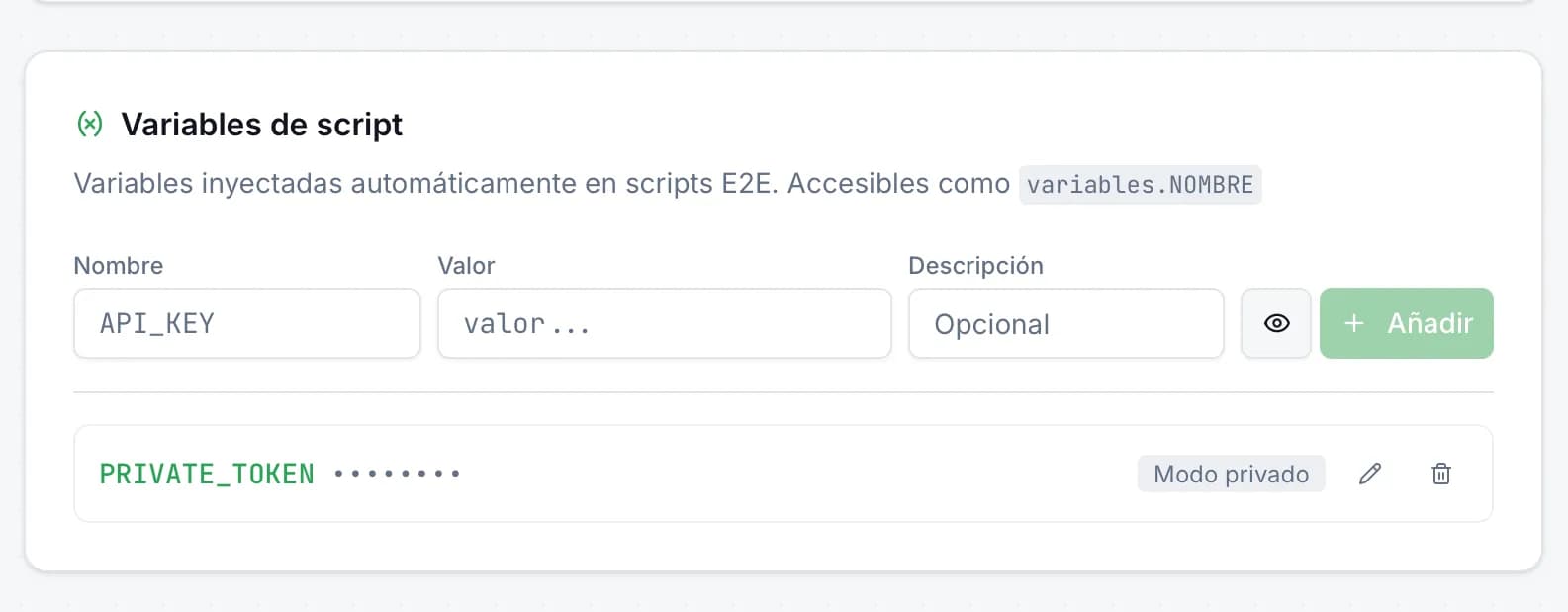
Variables de entorno en scripts E2E: secretos seguros en JMO Labs
Los scripts E2E necesitan datos sensibles —tokens de API, credenciales, URLs privadas— sin que aparezcan en el código. En JMO Labs hemos añadido variables de script con modo privado: se inyectan automáticamente, se enmascaran en los logs y se acceden con una sintaxis limpia.
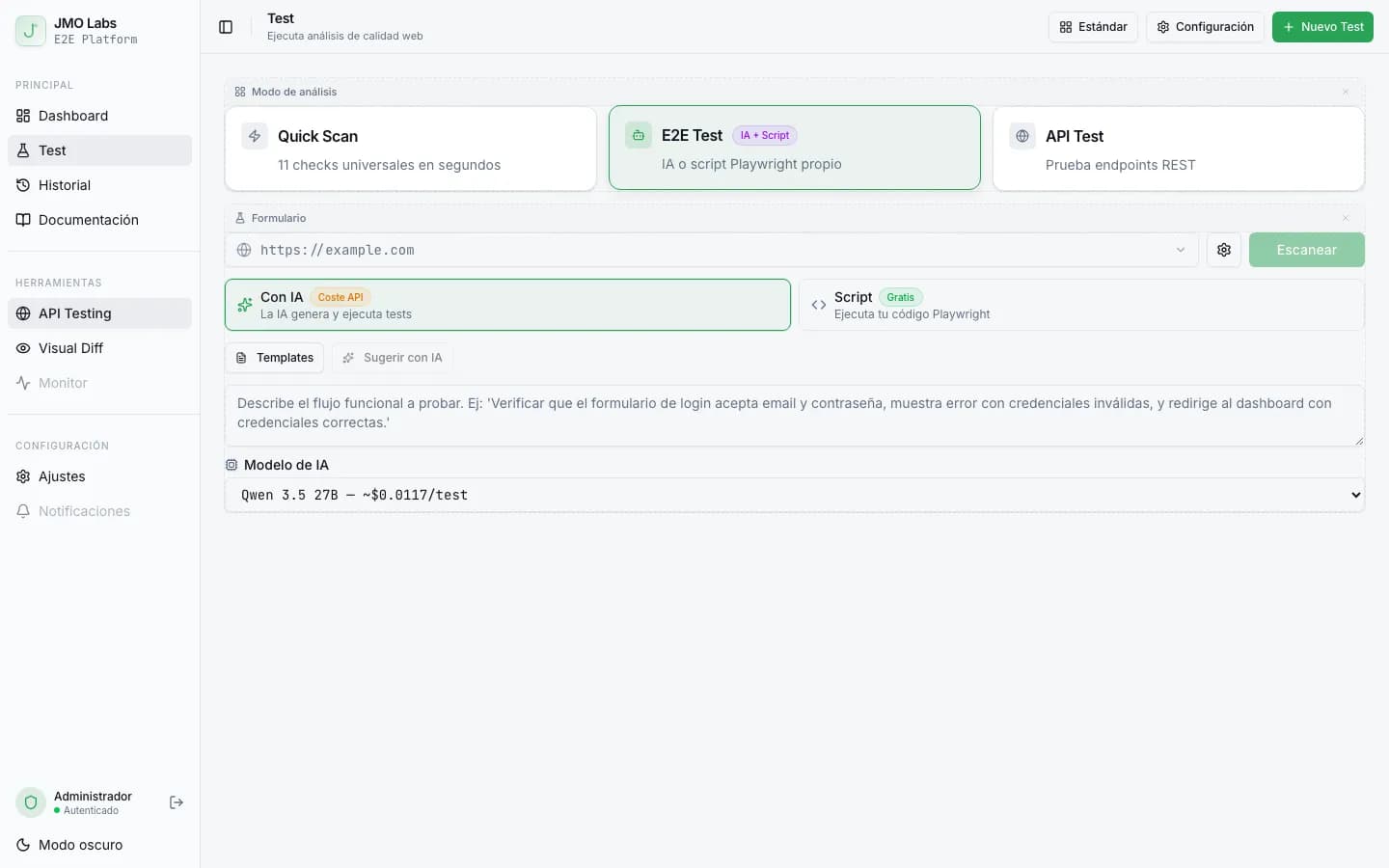
Tests E2E que se reparan solos: cómo construimos un pipeline de self-healing con IA
Los tests E2E se rompen con cada cambio de interfaz. En JMO Labs construimos un pipeline de 5 fases con IA que planifica, ejecuta, repara selectores, diagnostica fallos y verifica resultados de forma autónoma. La caché de selectores hace que cada ejecución sea más rápida que la anterior.
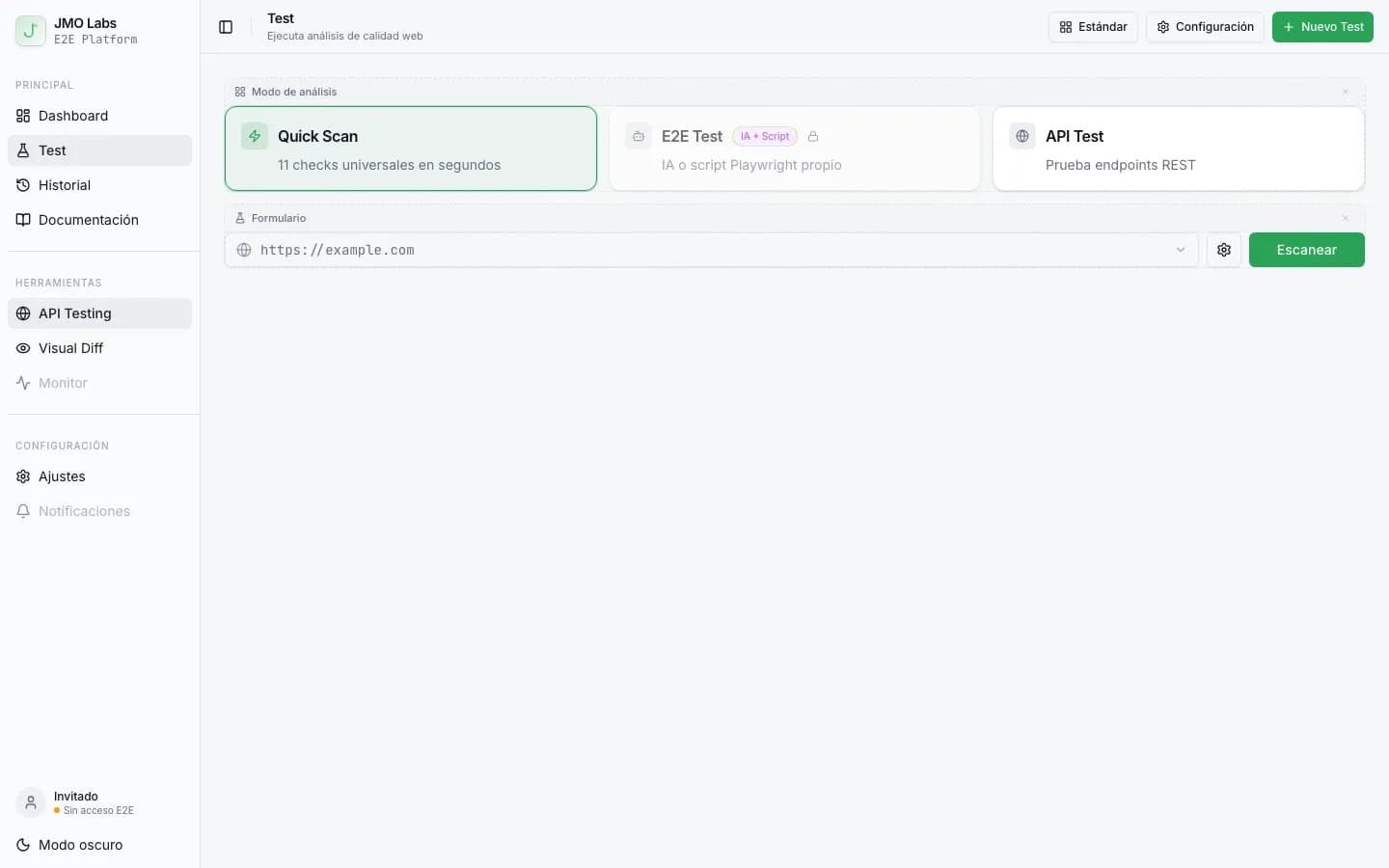
Construir una plataforma de testing con Playwright: arquitectura de JMO Labs
Playwright no es solo para tests E2E. En JMO Labs lo usamos como motor completo: 9 fases de comprobación, localizador de 9 estrategias con self-healing, grabación de vídeo, testing responsive con viewports reales y accesibilidad con axe-core.