Docker from scratch for QA folks who don't touch infrastructure
Images, containers, volumes, and networks explained for QA. The minimum you need to know so you don't depend on DevOps.

I've been working in QA for years, and for a long time Docker was something "the infra people" used. I just ran tests against an environment someone else had set up for me, and when that environment broke, I'd open a ticket and wait. Until one day staging had been down for three days, nobody was prioritizing it, and I had a regression suite that needed to run before the release. That was the day I decided to learn Docker, and it was one of the best time investments I've made as a QA engineer.
This article is the first in a series where I'm going to explain Docker from the point of view of someone coming from testing, not DevOps. No unnecessary abstractions, real examples, and focused on what will actually help you day to day.
The real problem Docker solves for QA
Before Docker, spinning up a test environment was a fragile process. You needed the right version of Node, the database with the schema up to date, the environment variables set correctly, a cache service running on the right port. If any of those pieces failed, your tests didn't work and you'd lose half the morning figuring out what had changed.
Docker packages all of that into an artifact that works the same on any machine. It doesn't matter whether your teammate uses macOS and you use Linux, whether CI runs on an ephemeral GitHub Actions instance, or whether you run it on your laptop. The environment is identical because it's defined in code.
For QA, that has a direct implication: your tests are only as reliable as the environment they run in. If the environment is inconsistent, the test results can't be trusted. Docker removes that variable.
Images, containers, and volumes, the three concepts you need
Docker has a lot of concepts, but to get started you only need to understand three.
An image is a read-only template that defines an environment. Think of it like a recipe: it describes what ingredients you need (base operating system, dependencies, your application) and how to combine them, but it isn't the dish itself. Images are built from a Dockerfile and stored in a registry like Docker Hub.
A container is a running instance of an image. If the image is the recipe, the container is the dish on the table. You can create multiple containers from the same image, each with its own state. And here's the key point: containers are disposable. When something breaks, you don't fix it, you destroy it and create a new one. That mindset shift is fundamental.
A volume is persistent storage that survives the destruction of a container. If your application uses a SQLite database or needs to save files between restarts, the volume is where that data lives. Without volumes, everything a container writes disappears when it stops.
# La imagen es la plantilla
docker pull node:22-alpine

# El contenedor es la instancia viva
docker run --name mi-runner node:22-alpine node -e "console.log('hola')"

# El volumen persiste datos entre contenedores
docker volume create datos-test
docker run -v datos-test:/data node:22-alpine sh -c "echo 'resultado' > /data/output.txt"
The commands you'll use every day
You don't need to memorize a hundred commands. These six cover 90% of what a QA person needs day to day.
docker run creates and starts a container from an image. It's the most important command and the one you'll use most often.
# Arrancar un contenedor con un nombre, mapear puertos y ejecutar en segundo plano
docker run -d --name app-test -p 3000:3000 mi-app:latest

# Ejecutar un comando puntual y destruir el contenedor al terminar
docker run --rm node:22-alpine node -e "console.log(process.version)"
The --rm flag is your friend. It destroys the container automatically when it finishes, so you don't end up with orphaned containers piling up and taking space.
docker ps shows running containers. With -a it includes stopped ones. It's your first step when something isn't working: check what's running and what state it's in.
# Ver contenedores activos
docker ps

# Ver todos, incluidos los detenidos
docker ps -a

# Formato personalizado para ver solo lo relevante
docker ps --format "table {{.Names}}\t{{.Status}}\t{{.Ports}}"
docker logs shows a container's standard output. When a test fails against a dockerized service, the first thing you do is look at its logs.
# Ver los últimos 50 registros
docker logs --tail 50 app-test

# Seguir los logs en tiempo real (como tail -f)
docker logs -f app-test

# Incluir timestamps para correlacionar con los fallos de tus tests
docker logs -t app-test
docker exec runs a command inside a container that's already running. It's hugely useful for debugging: you get into the container, inspect the filesystem, check environment variables, and verify that services are responding.
# Abrir una shell interactiva dentro del contenedor
docker exec -it app-test sh

# Verificar que la base de datos existe
docker exec app-test ls -la /app/data/

# Comprobar las variables de entorno
docker exec app-test env | grep DATABASE
docker build builds an image from a Dockerfile. You'll use it when you want to create your own custom testing environment.
# Construir una imagen con un tag descriptivo
docker build -t test-runner:latest -f Dockerfile .

# Construir sin cache (útil cuando algo se cachea mal)
docker build --no-cache -t test-runner:latest .
docker stop and docker rm stop and remove containers. Cleaning up after yourself is a habit that'll save you disk issues and port conflicts.
# Detener y eliminar un contenedor específico
docker stop app-test && docker rm app-test

# Eliminar todos los contenedores detenidos de golpe
docker container prune -f
Your first Dockerfile: a test runner with Node.js
Let's build something practical. A Dockerfile that packages a Node.js project with its tests, so anyone can run the full suite with a single command, without installing anything on their machine.
# Imagen base: Alpine es ligera (menos de 50 MB)
FROM node:22-alpine

# Directorio de trabajo dentro del contenedor
WORKDIR /app

# Copiar solo los ficheros de dependencias primero (aprovecha la cache de capas)
COPY package.json pnpm-lock.yaml ./

# Instalar pnpm y las dependencias
RUN corepack enable && corepack prepare pnpm@latest --activate && \
    pnpm install --frozen-lockfile

# Copiar el resto del código fuente
COPY . .

# Comando por defecto: ejecutar los tests
CMD ["pnpm", "test:ci"]
Notice the order of the COPY instructions. First we copy only the dependency files (package.json and the lockfile), install them, and only then copy the source code. This matters because Docker caches each layer. If you change the code but not the dependencies, Docker reuses the pnpm install layer and the rebuild is almost instant.
Now anyone on the team can run the tests like this.
# Construir la imagen del runner
docker build -t mi-proyecto-tests .

# Ejecutar la suite completa
docker run --rm mi-proyecto-tests

# Ejecutar un test específico
docker run --rm mi-proyecto-tests pnpm test:ci -- --grep "login"
They don't need Node installed, or pnpm, or the right version of anything. Everything is inside the image.
The mental model: containers are disposable
This is the biggest mindset shift Docker asks of you, and the hardest one when you're coming from a world where environments are pets, not cattle.
In the traditional model, a server is a pet. It has a name, you take care of it, you install things on it manually, and when it gets sick you try to heal it. In the container model, each instance is cattle. It doesn't have a meaningful name, it doesn't accumulate state, and when it fails you kill it and bring up a new one.
For QA, this is freeing. If a test leaves the database in an inconsistent state, you don't need to write elaborate cleanup scripts. You destroy the container and create a clean one. If you suspect the environment has something weird that's affecting the results, you don't waste time investigating. You destroy and recreate.
# Un ciclo típico de testing con contenedores
docker run -d --name test-env mi-app:latest     # levantar
docker exec test-env pnpm test:ci               # ejecutar tests
docker logs test-env > test-output.log           # capturar logs
docker stop test-env && docker rm test-env       # destruir
This pattern is the foundation for everything that comes later in the series. Compose, multi-stage builds, CI debugging, all of it is built on the idea that containers are disposable and the environment is reproducible.
Common beginner mistakes
There are a few mistakes almost all of us make when starting out with Docker.
Not cleaning up containers. Every docker run without --rm leaves behind a stopped container that takes up disk space. After a few weeks you end up with dozens of zombie containers. Get used to using --rm for ephemeral containers and docker container prune -f regularly.
Ignoring .dockerignore. Without a .dockerignore file, the COPY . . in your Dockerfile sends everything in the directory to the daemon, including node_modules, .git, data files, and anything else that shouldn't be in the image. That makes the build slow and the image unnecessarily large.
node_modules
.git
.env
data
*.log
.next
Running everything as root. By default, processes inside a container run as root. That's an unnecessary security risk. In a production Dockerfile, you should always create an unprivileged user and use it with the USER instruction.
Using latest in production. The latest tag is mutable, which means the same reference can point to different images at different times. If you build with node:latest today and your teammate does the same tomorrow, you might get different Node versions. Always pin the base image version.
Next step
With these fundamentals, you can already start containers, build images, and run tests in a reproducible environment. But Docker's real power for QA shows up when you combine multiple services, your application, the database, the cache service, all starting with a single command. That's exactly what we'll cover in the next article in the series, where we'll use Docker Compose to spin up full test environments in seconds.

Jose, author of the blog
QA Engineer. I write out loud about automation, AI and software architecture. If something here helped you, write to me and tell me about it.
Leave the first comment
What did you think? What would you add? Every comment sharpens the next post.
If you liked this
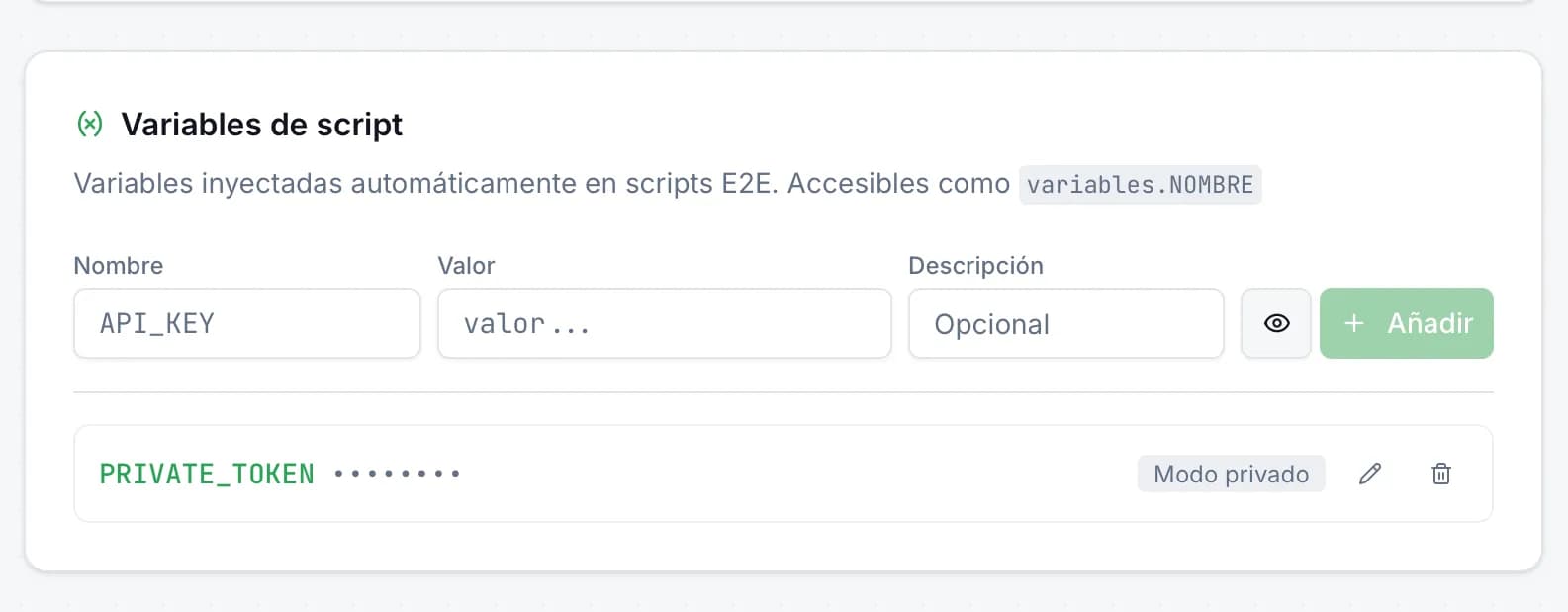
Variables de entorno en scripts E2E: secretos seguros en JMO Labs
Los scripts E2E necesitan datos sensibles —tokens de API, credenciales, URLs privadas— sin que aparezcan en el código. En JMO Labs hemos añadido variables de script con modo privado: se inyectan automáticamente, se enmascaran en los logs y se acceden con una sintaxis limpia.
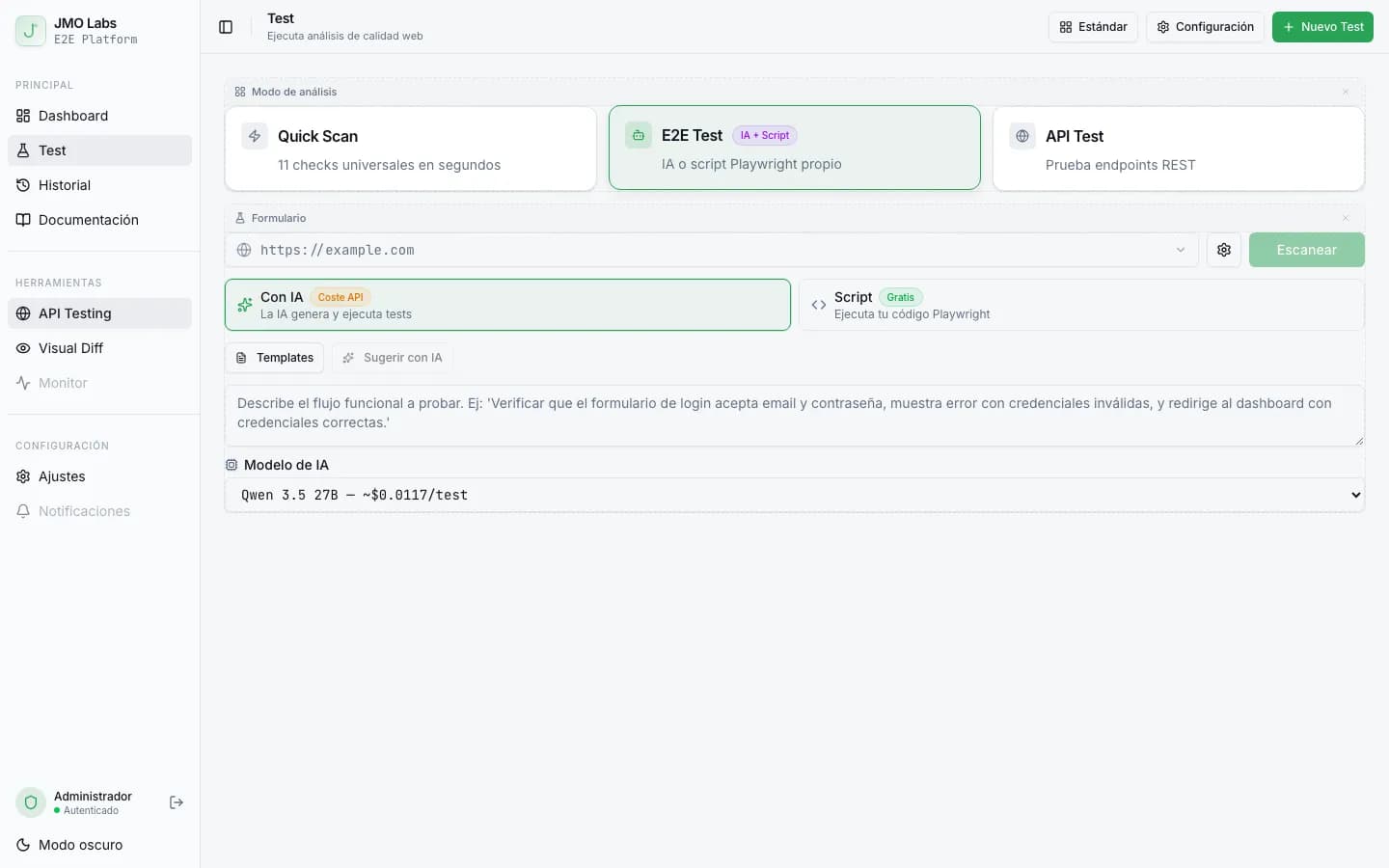
Tests E2E que se reparan solos: cómo construimos un pipeline de self-healing con IA
Los tests E2E se rompen con cada cambio de interfaz. En JMO Labs construimos un pipeline de 5 fases con IA que planifica, ejecuta, repara selectores, diagnostica fallos y verifica resultados de forma autónoma. La caché de selectores hace que cada ejecución sea más rápida que la anterior.
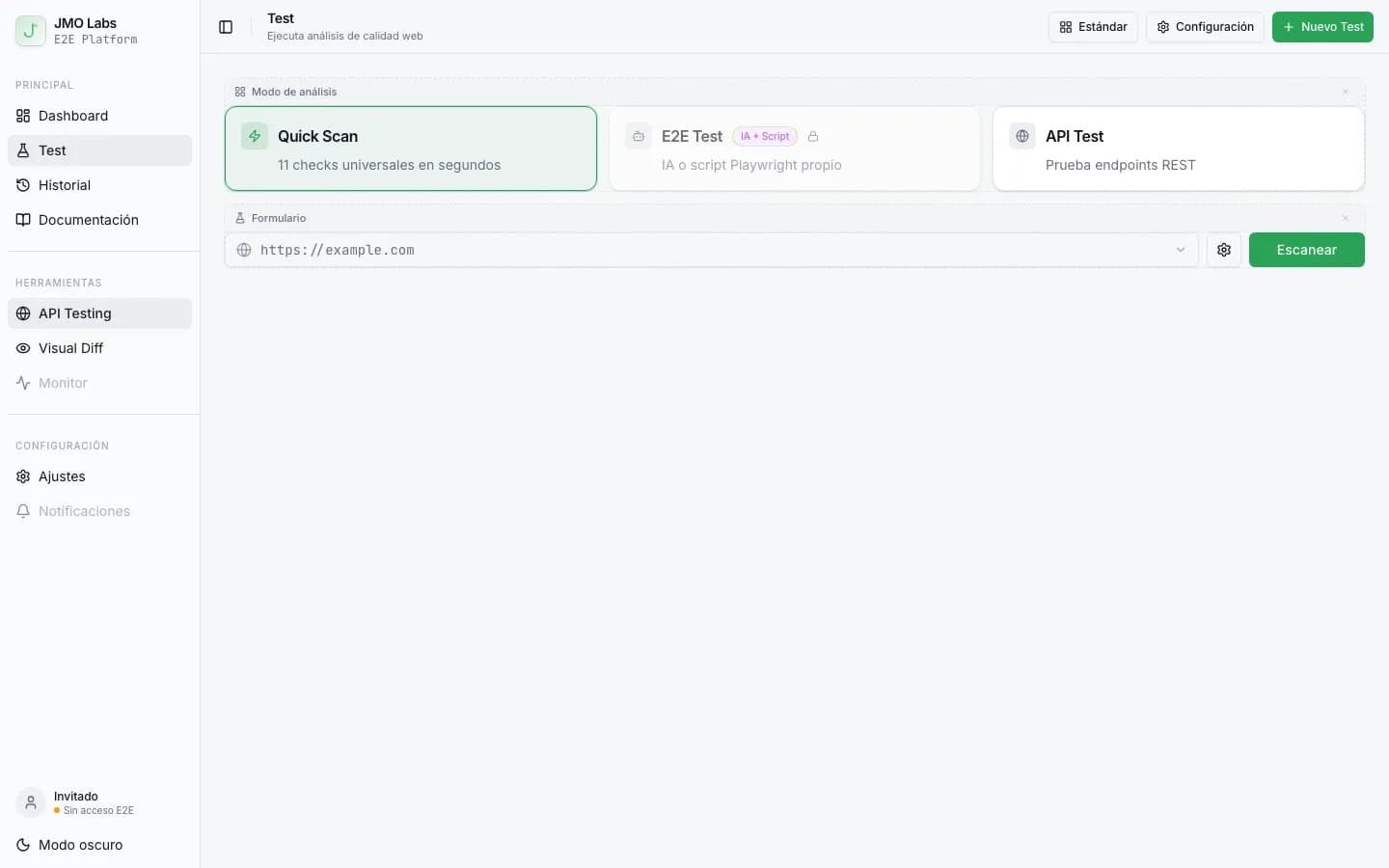
Construir una plataforma de testing con Playwright: arquitectura de JMO Labs
Playwright no es solo para tests E2E. En JMO Labs lo usamos como motor completo: 9 fases de comprobación, localizador de 9 estrategias con self-healing, grabación de vídeo, testing responsive con viewports reales y accesibilidad con axe-core.